Five tips for looking after many client sites
A board for the work, a vault for the logins, a day for updates and alerts before the client calls. Four habits that keep many sites under control, and a fifth that does most of it for you.
 Olaf SozańskiFounder of TantiPress6 min read
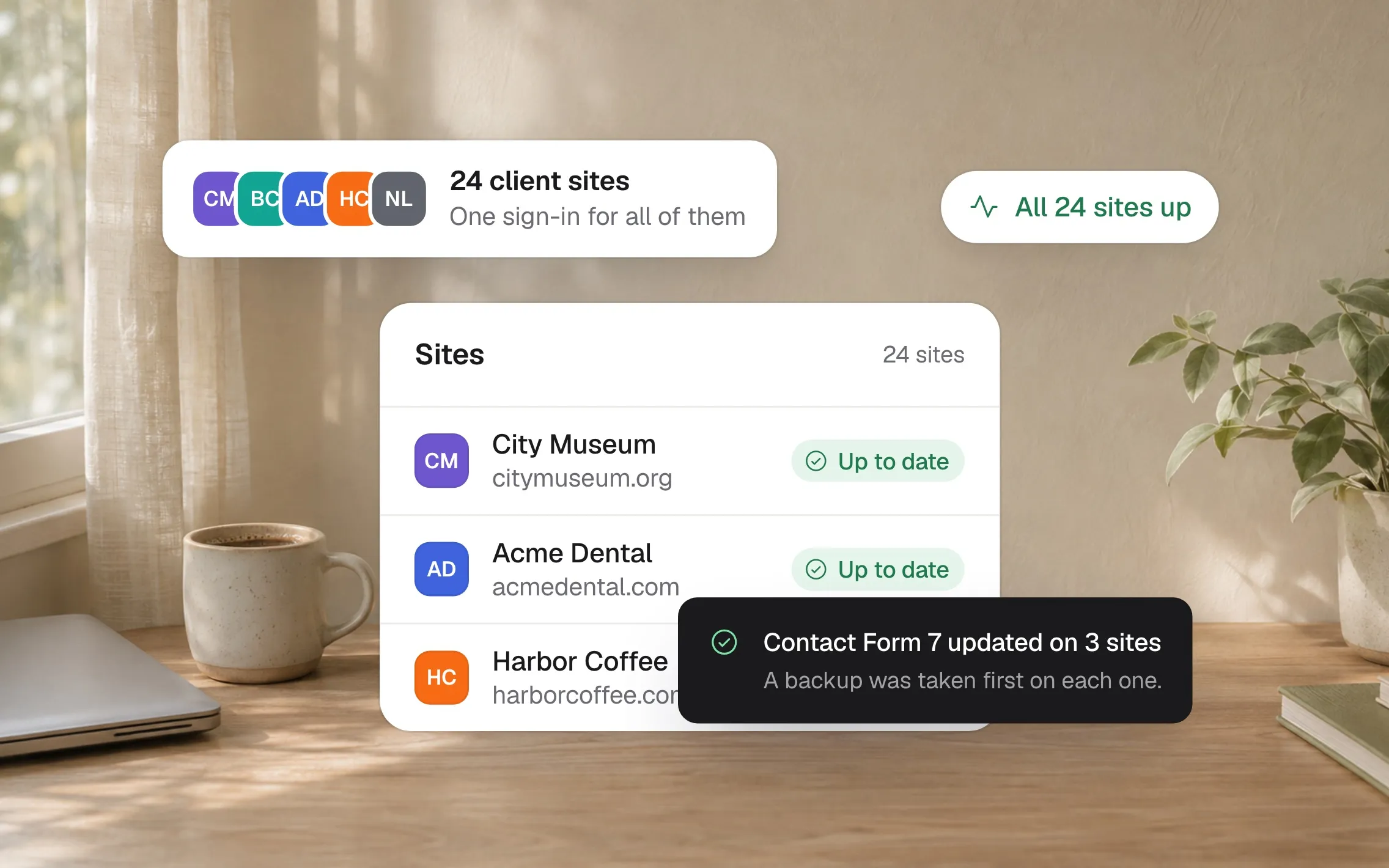
One site is easy
A single client site is no trouble. You know its login, you know its plugins, and you know who to call when something looks off.
Twenty sites are a second job. Each one has its own login, its own updates, its own hosting and its own client, who emails at the worst possible moment. None of the work is hard. There is just a lot of it, and it is scattered.
Here are four habits that keep it under control, whatever tools you use. The fifth is the shortcut we are building.
Put every task on one board
Requests arrive from everywhere. An email from one client, a call from another, a note you wrote on Tuesday and lost by Thursday. The first habit is to put all of it in one place.
Jira and Notion both do the job. Jira suits teams that already plan their work in it. Notion is quicker to set up if you work alone or in a small team. Whichever you pick, a few rules make the board worth keeping:
- One card per task, tagged with the site. When a client asks what you did this month, filter by their site and you have the answer.
- Let the routine repeat itself. Updates, checks and renewals come back every month. In Notion, a database template can repeat on a schedule. In Jira, an automation rule can create the same task for you.
- A due date on every card. “Soon” is not a date.
- Move requests out of your inbox. When a client writes in, the first thing you do is make a card.
Next to the board, keep a page for each site. It holds the things you need twice a year and can never find when you do.
Keep every login in a password manager
A shared spreadsheet of passwords feels practical until someone forwards it. And typing a password off a sticky note into the twentieth wp-admin of the day is nobody’s idea of fun.
A password manager such as 1Password or Bitwarden fixes both. It keeps every login encrypted, fills it in on the right site and makes a long, unique password for each one. If one site leaks, the other nineteen stay safe.
Three rules make it work for a team:
A login for each personGive everyone on the team their own WordPress account instead of sharing one admin. You can see who changed what, and when someone leaves, you remove one account instead of changing every password.
A vault for each clientGroup the logins by client and share each vault only with the people who work on that client’s sites. Share from the vault, never by email or chat.
Two-step sign-in on every adminMany password managers can store the six-digit codes too, so the second step takes a second, not a hunt for your phone.
Update on a fixed day, backup first
Updates left for “when there’s time” pile up, and the site with thirty updates waiting is the one that breaks. Pick a day, put it on the board as a repeating task, and go through the sites in the same order every time.
- Take a backup. Files and database, somewhere you can restore from in minutes. Most hosts and backup plugins can do this.
- Start with a quiet site. If an update is going to break something, let it break where few people will notice.
- Check what earns the money. The contact form, the booking page, the checkout. A site that loads is not always a site that works.
- Write down what changed. One line on the site’s card: what you updated, from which version to which. Next month, you will be glad you did.
Security fixes are the exception. Those go out the day you hear about them, which brings us to the next habit.
Hear about problems before your client does
The worst way to learn that a site is down is an email from the client. An uptime monitor such as UptimeRobot or Better Stack checks every site every few minutes and tells you the moment one stops answering.
While you are at it, watch three more things:
- Certificates. An expired SSL certificate greets visitors with a full-page warning. Get an alert two weeks before it runs out.
- Plugins with known holes. Patchstack, Wordfence and WPScan track vulnerable plugins and themes, and some of them can tell you when one of yours shows up.
- Domains. A domain that lapses takes the site and the email with it. Keep the renewal dates on each site’s page from the first tip.
Send the alerts where the whole team looks, a shared channel rather than one person’s inbox, so a problem on Saturday doesn’t wait until Monday.
Or let TantiPress carry most of it
Four habits, four kinds of tool and a board to hold them together. It works, and I would still recommend every one of them. But it is a lot to keep running, and every new client adds to it.
That is why we are building TantiPress. It connects to every WordPress site you run and puts the routine in one place.
Here is what update day looks like then. One plugin, four client sites, a backup before each one.
You will still want Jira or Notion for the big projects, like a redesign or a new shop. But the monthly routine of updates, checks, logins and posts happens in one place, and the board gets much shorter.
The open beta starts soon, and your first month is on us.¹ If you look after more than a handful of client sites, join the waitlist and tell me which of these habits costs you the most time.